Start with your machine
Lizard considers your CPU, RAM, GPU, and available graphics memory when planning a model.
Private AI for Windows
Choose models that fit your Windows PC. Run them locally, then put them to work through chat and a local API.
For Windows 10 & 11. Choose a model suited to your hardware.

A practical route to local AI
Start with your CPU, memory, and graphics hardware.
Find a model and quantization suited to your machine.
Use the active model in chat or through a local API.
From choosing a model to using its output, the operating steps stay visible.
Lizard considers your CPU, RAM, GPU, and available graphics memory when planning a model.
Choose compatible GGUF models and quantizations, then verify the selected download.
Keep conversations and use available document and chart capabilities in the local workspace.
Use the local OpenAI-compatible endpoint with applications that support a configurable provider.
After activation and setup, run installed models on the Windows PC.
Keep provider lanes and workload conditions visible when comparing performance.
Local chat, with useful visual output.
Supplied product preview. Interface and available features may vary by version.
Inside Lizard
Lizard’s local chat can turn a conversation into visual output. Benchmark results belong to the machine, model, and workload used to produce them. Keep those conditions attached to every comparison.
Read the benchmark methodologyThe execution engines remain distinct in the architecture and in the benchmark evidence.
A resident-GPU execution path using Direct3D 12 on supported Windows hardware. Model lifecycle and warmed shader caching stay part of the runtime.
A separate execution engine using a typed graph, a reusable activation arena, and a pre-compiled compute plan.
Lizard is designed for 64-bit Windows 10 and Windows 11. Model suitability and performance depend on your hardware, available memory, model, and drivers. Review the download requirements before installing.
Installed models can perform local inference after account activation and model setup. Downloads, activation, and optional connected features may require the internet.
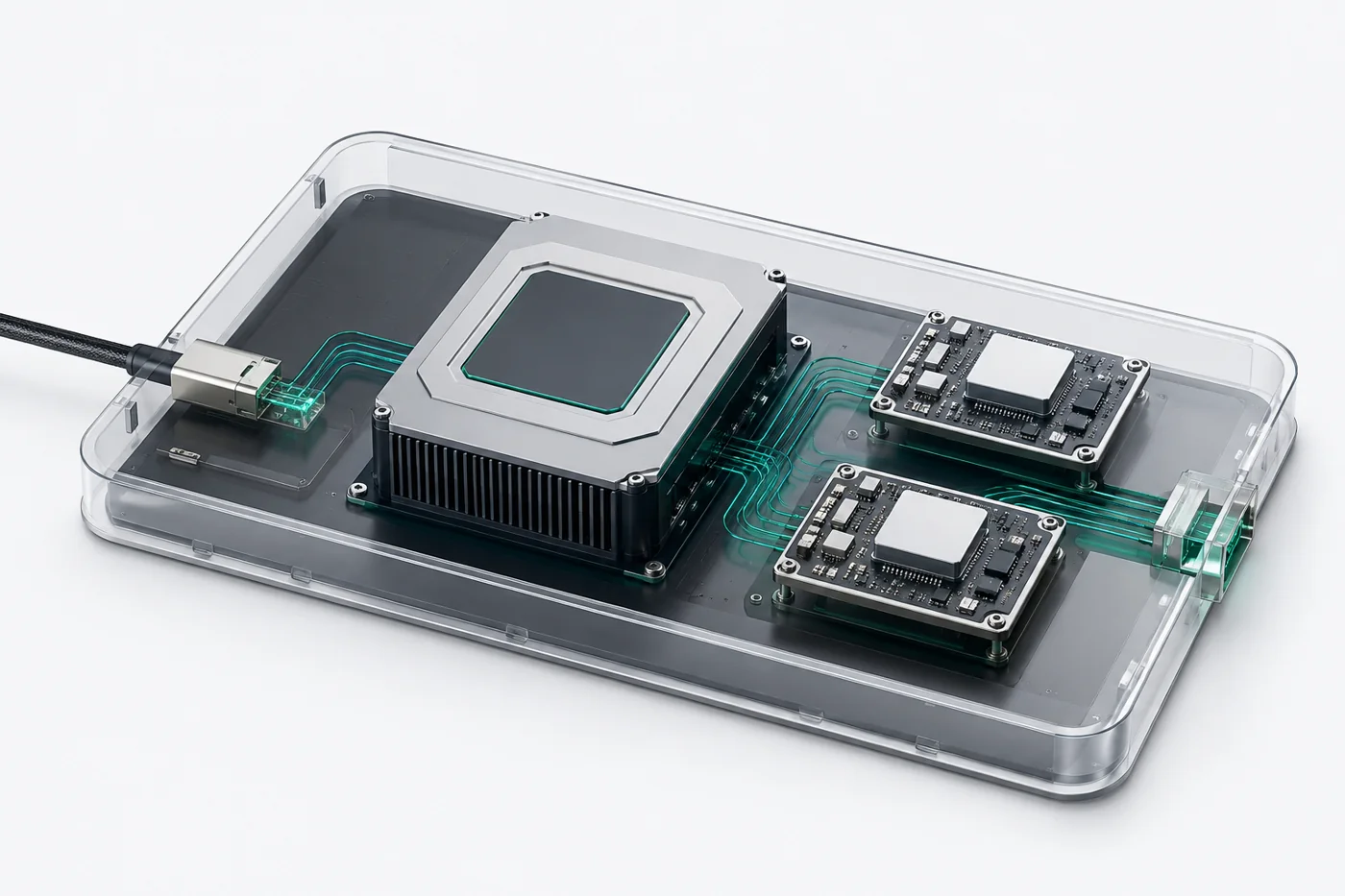
Lizard Native and Caterpillar are separate execution paths. Routing depends on the model and hardware. The illustration shows the decision process, not a guarantee of simultaneous execution.
Model onboarding is a separate setup step. Review the selected model’s license and requirements. The official download page explains current activation terms and optional capabilities.
Short films and original product interfaces. Explore at your own pace.
A silent conceptual product film from the Lizard collection.
Original product preview. Select the image to explore the details.